
Printing a single PDF is something everyone knows how to do. The problem starts when you need to print ten, twenty, or fifty at once, with different page formats. Between the limitations of the Windows context menu, the print settings that apply uniformly, and the queues that get stuck without warning, the operation often turns into a waste of time. Here are the technical points to master for printing multiple PDF files without unpleasant surprises.
Limit of the Windows Context Menu and Batch Printing of PDFs
A common reflex is to select all the PDFs in Explorer and then right-click to choose “Print.” This method works, but with a restriction that Windows does not clearly indicate: beyond 15 selected files, the “Print” option disappears from the context menu.
This behavior is related to the system setting MultipleInvokePromptMinimum. By default, Windows hides action commands when the selection exceeds a certain threshold. Two approaches allow you to bypass this limit.
The simplest: break the batch into groups of a maximum of 15 files, then start printing for each group. It’s tedious if the stack is large, but it requires no particular technical skill. If you’re looking to understand how to print multiple PDF files in one operation, this constraint is the first to know.
The second approach involves modifying the Windows Registry to raise this threshold. This manipulation works, but it changes a system parameter and should be reserved for users who know how to navigate the Registry safely.
Heterogeneous Page Formats: The Pitfall of Batch Printing
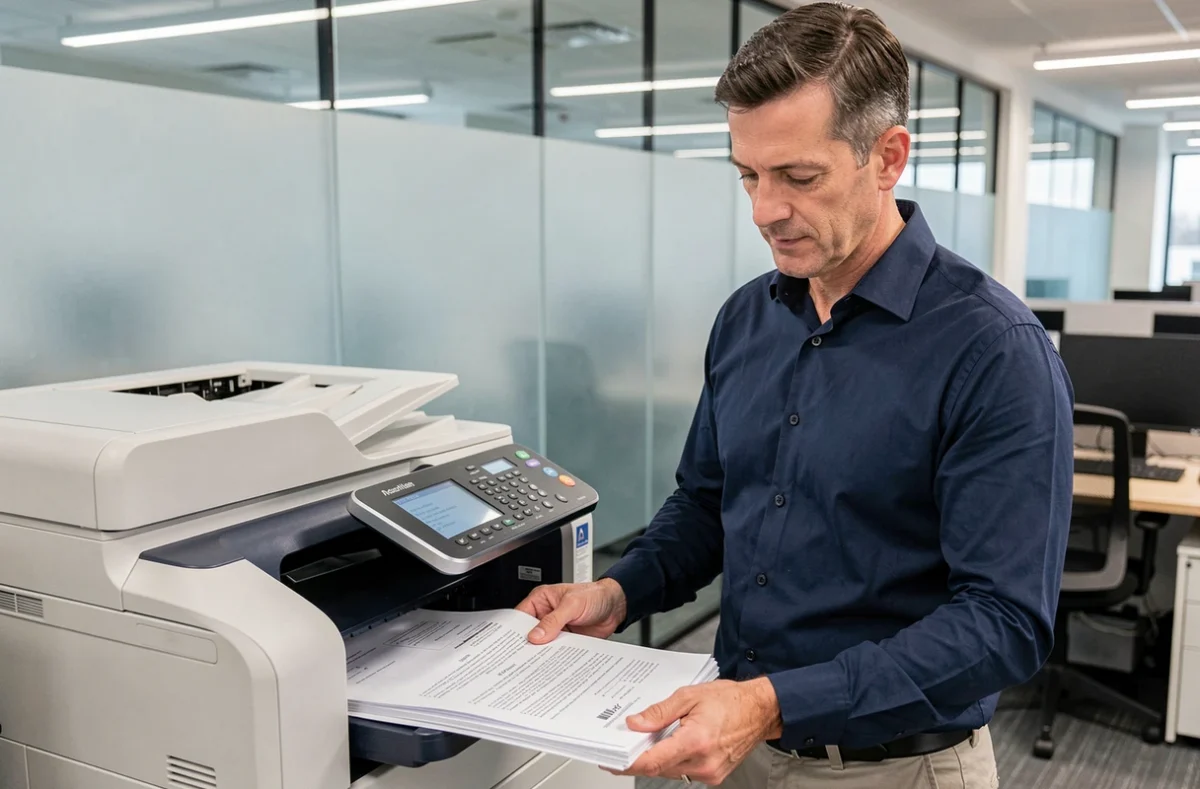
Starting the printing of several PDFs at once assumes that all share the same characteristics. In practice, this is rarely the case. A batch can mix documents in A4 and Letter format, portrait and landscape pages, color and black and white files.
The print settings apply uniformly to the entire batch. If the printer is set to A4 portrait, a landscape or Letter document will come out cropped, misaligned, or with uneven margins. No error message warns of this discrepancy before launching.
The most reliable solution is to sort the files before printing:
- Group the PDFs by paper format (A4, Letter, A3) into separate folders
- Separate portrait documents from landscape documents
- Isolate color files from black and white files to avoid unnecessary ink consumption
A test on the first page of each group allows you to verify that the output meets expectations. This step takes a few seconds and prevents wasting paper on an entire poorly configured batch.
Batch PDF Printing on Linux with CUPS and lpr
Online guides focus almost exclusively on Windows and Adobe Acrobat. On Linux, the logic is different: batch printing is controlled from the terminal, without opening each file individually.
The CUPS (Common UNIX Printing System) manages printers and queues. The lpr command allows you to send multiple files to the printer in a single line. You just need to list the files or use a wildcard to target all PDFs in a directory.
Before launching a batch, two checks are useful:
lpstat -pdisplays the default printer and its status (ready, paused, error)lpstat -olists the jobs waiting in the print queuecancel -aclears the queue if a stuck job is preventing subsequent ones from passing
This approach is particularly suitable for environments where dozens of documents need to be printed regularly. It avoids any graphical interface and integrates into automated scripts.
Blocked Print Queue: Diagnosis Before Restarting the Batch

A batch of PDFs that seems to “do nothing” after launching is a common case. The usual reflex is to restart the printing, which only piles up the jobs in the queue and worsens the problem.
One stuck job is enough to freeze the entire print queue. On Windows, the print queue manager (accessible via printer settings) allows you to view pending jobs and delete the one causing the issue. On Linux, lpstat -o serves the same role.
The most common causes of blockage are a corrupted PDF file, a page format not supported by the printer, or a broken network connection between the workstation and the printer. In any case, the procedure remains the same: identify the stuck job, delete it, and then restart only the files that have not been printed.
Adobe Acrobat Reader and the Multiple Pages Per Sheet Option
A different need but often confused with batch printing: placing multiple pages of the same PDF on a single physical sheet. Adobe Acrobat Reader DC offers this function directly in the print dialog.
By clicking the “Multiple” button in the print settings, a dropdown menu allows you to choose the number of pages per sheet. This option reduces paper consumption without altering the source file. It applies to the open document, not to a batch of separate files.
The distinction between these two operations, printing multiple files at once and printing multiple pages on one sheet, deserves to be clearly stated. The first relates to batch management, the second to layout at print time. Confusing them leads to searching for the wrong function in the wrong menu.
For large batches mixing various formats, neither of these two functions eliminates the need for prior sorting. An A4 portrait file placed in a batch configured in landscape will produce an unusable result, whether printing one page per sheet or four.